
Introduction
Imagine having access to thousands of retro games at your fingertips. That’s the magic of the Tgagamestick. But here’s the thing: the default settings are just the beginning. In this guide, I’ll show you how to unlock the full potential of your Tgagamestick Settings. We’ll cover everything from initial setup to advanced performance tweaks. Get ready to dive in and make your gaming experience even better!
First Steps: Essential Tgagamestick Initial Setup and Configuration
When you first get your Tgagamestick, setting it up is a breeze. Let’s walk through the steps to get you gaming in no time.
First, connect the Tgagamestick to your TV. Use the HDMI cable that came with it. Plug one end into the Tgagamestick and the other into an available HDMI port on your TV. Next, plug the power adapter into the Tgagamestick and then into a power outlet. Turn on your TV and switch to the correct input channel. You should see the Tgagamestick welcome screen.
Now, let’s pair your wireless controllers. Press and hold the pairing button on the controller until the LED lights start flashing. The Tgagamestick will automatically detect and connect to the controller. Repeat this for any additional controllers.
Once your controllers are connected, you’ll go through the Tgagamestick Settings. Start by selecting your preferred language. Then, connect to your Wi-Fi. Choose your network from the list and enter the password using the on-screen keyboard. This step is crucial for downloading games and updates.
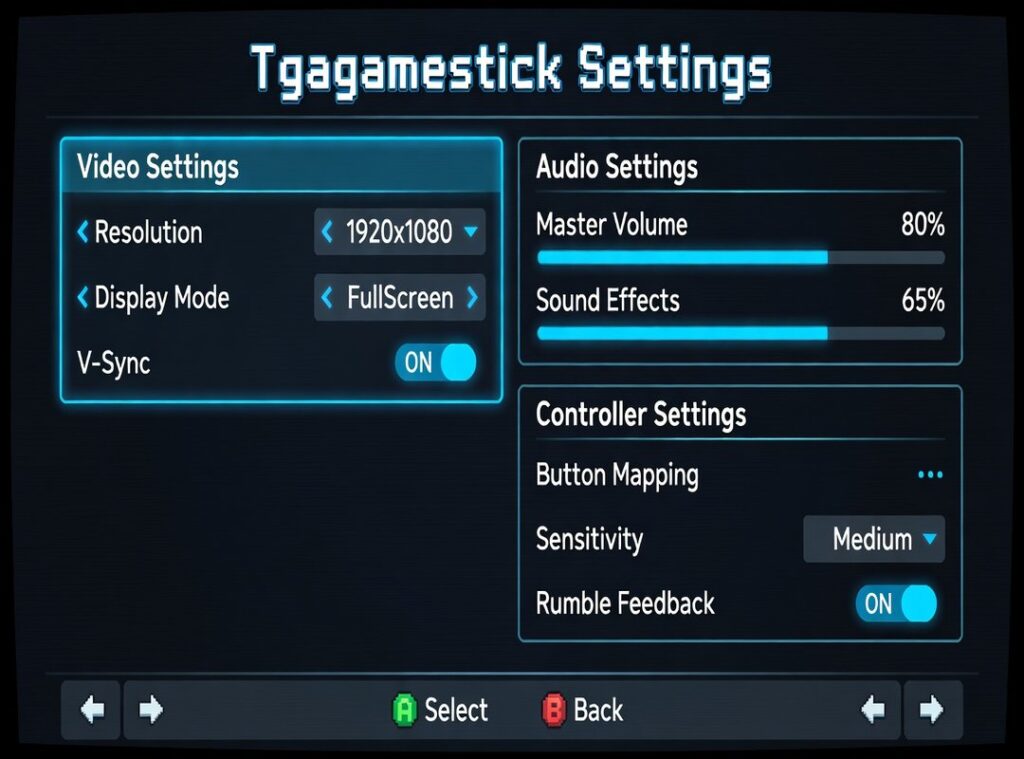
Lastly, set the display resolution. Go to the display settings and select the resolution that matches your TV. For most modern TVs, 1080p is ideal. If your TV supports 4K, you can choose that option for even sharper visuals. Setting the right resolution ensures the best picture quality and smooth gameplay.
With these steps, your Tgagamestick is ready to go. Enjoy your gaming experience!
Optimizing Gameplay: Advanced Tgagamestick Configuration Options
Emulators play a crucial role in the Tgagamestick Settings. They let you run classic games on modern hardware. To get to the advanced settings, you need to access RetroArch. It’s the backbone of many gaming setups.
To open RetroArch, go to the main menu and select “RetroArch” or “Quick Menu.” From there, choose “Settings.” This will bring up a detailed list of options. Let’s dive into some key settings.
First, look at the video settings. You can change the aspect ratio from 4:3 to 16:9. This makes a big difference in how the game looks. For an authentic feel, apply shaders. These give your screen a CRT-like appearance. Video filters also help smooth out the graphics.
Audio is just as important. Reducing audio latency ensures sounds sync with the action. Normalizing volume across different games keeps things consistent. No more sudden loud or quiet moments.
Controller mapping is another essential feature. You can remap buttons for specific games or systems. This lets you create a custom layout that feels right for you. For example, if you prefer a certain button for jumping, you can set it up that way.
Performance settings like ‘frameskip’ and ‘rewind’ are also useful. Frameskip helps maintain a smooth frame rate by skipping frames when needed. Rewind lets you go back in time in the game. This is great for practicing tricky sections or undoing mistakes.
By tweaking these settings, you can enhance your gaming experience. It’s all about finding the right balance for your setup.
Personalizing Your Experience: Managing Games and UI
Managing your game library on Tgagamestick Settings is a breeze. First, let’s talk about adding or removing games. You can easily add new titles by browsing the store and selecting what you want. To remove a game, just go to your library, find the title, and hit delete. Simple as that.
Now, let’s dive into the scraping feature. This nifty tool automatically adds box art, descriptions, and even video previews to your game lists. It’s like having a personal librarian who makes sure everything looks neat and tidy. I recommend using this feature to keep your library looking sharp and organized.
| UI Customization Options | How to Use |
|—————————–|—————-|
| System Theme | Choose from a variety of themes in settings. |
| Menu Transition Effects | Select your favorite transition effect for a smooth experience. |
| Background Music | Pick from a list of tracks or upload your own. |
Customizing the UI is where you can really make it your own. Change the system theme to something that matches your style. Pick a menu transition effect that feels right. And don’t forget to set some background music to set the mood. These small tweaks can make a big difference in how you enjoy your gaming sessions.
Lastly, creating ‘Favorites’ or ‘Collections’ is a must. This helps you organize and quickly access your most-played titles. Just go to your library, select the games you love, and add them to a new collection. It’s a great way to keep your favorites at your fingertips.
Troubleshooting Common Tgagamestick Configuration Issues
When setting up your Tgagamestick, you might run into a few hitches. Don’t worry; I’ve got some tips to help. Tgagamestick Settings can be tricky, but with these pointers, you’ll get it right.
- Controllers not connecting or lagging? Check the Bluetooth connection. Sometimes, restarting both the controller and the Tgagamestick helps. If that doesn’t work, try updating the firmware on your controller.
- Game won’t load or runs poorly? Try a different emulator core. Some games run better with specific cores. Experiment with a few to see which one works best for your game.
- System acting up after changes? Perform a system reset. This will restore the default settings without erasing your games. It’s like hitting a refresh button on your setup.
- Before making big changes, always back up your SD card. This way, if something goes wrong, you can restore everything easily. It’s a simple step that saves a lot of headaches.
With these tips, you can tackle most issues and keep your gaming experience smooth.
Navigating through the initial setup, performance optimization, and UI personalization of your Tgagamestick is more than just a necessity—it’s part of the joy of retro gaming. The journey of tweaking and fine-tuning these settings can be as rewarding as the games themselves. Don’t hesitate to dive in and experiment with different configurations until you find the perfect setup that brings out the best in your gaming experience. And once you’ve found that sweet spot, remember to create a backup of your settings. This way, you can always return to your ideal configuration, no matter what. Happy gaming! ????️
 Ask David Kaplantopherr how they got into latest gaming news and you'll probably get a longer answer than you expected. The short version: David started doing it, got genuinely hooked, and at some point realized they had accumulated enough hard-won knowledge that it would be a waste not to share it. So they started writing.
What makes David worth reading is that they skips the obvious stuff. Nobody needs another surface-level take on Latest Gaming News, Player Strategy Guides, Expert Commentary. What readers actually want is the nuance — the part that only becomes clear after you've made a few mistakes and figured out why. That's the territory David operates in. The writing is direct, occasionally blunt, and always built around what's actually true rather than what sounds good in an article. They has little patience for filler, which means they's pieces tend to be denser with real information than the average post on the same subject.
David doesn't write to impress anyone. They writes because they has things to say that they genuinely thinks people should hear. That motivation — basic as it sounds — produces something noticeably different from content written for clicks or word count. Readers pick up on it. The comments on David's work tend to reflect that.
Ask David Kaplantopherr how they got into latest gaming news and you'll probably get a longer answer than you expected. The short version: David started doing it, got genuinely hooked, and at some point realized they had accumulated enough hard-won knowledge that it would be a waste not to share it. So they started writing.
What makes David worth reading is that they skips the obvious stuff. Nobody needs another surface-level take on Latest Gaming News, Player Strategy Guides, Expert Commentary. What readers actually want is the nuance — the part that only becomes clear after you've made a few mistakes and figured out why. That's the territory David operates in. The writing is direct, occasionally blunt, and always built around what's actually true rather than what sounds good in an article. They has little patience for filler, which means they's pieces tend to be denser with real information than the average post on the same subject.
David doesn't write to impress anyone. They writes because they has things to say that they genuinely thinks people should hear. That motivation — basic as it sounds — produces something noticeably different from content written for clicks or word count. Readers pick up on it. The comments on David's work tend to reflect that.